Graph Viewer
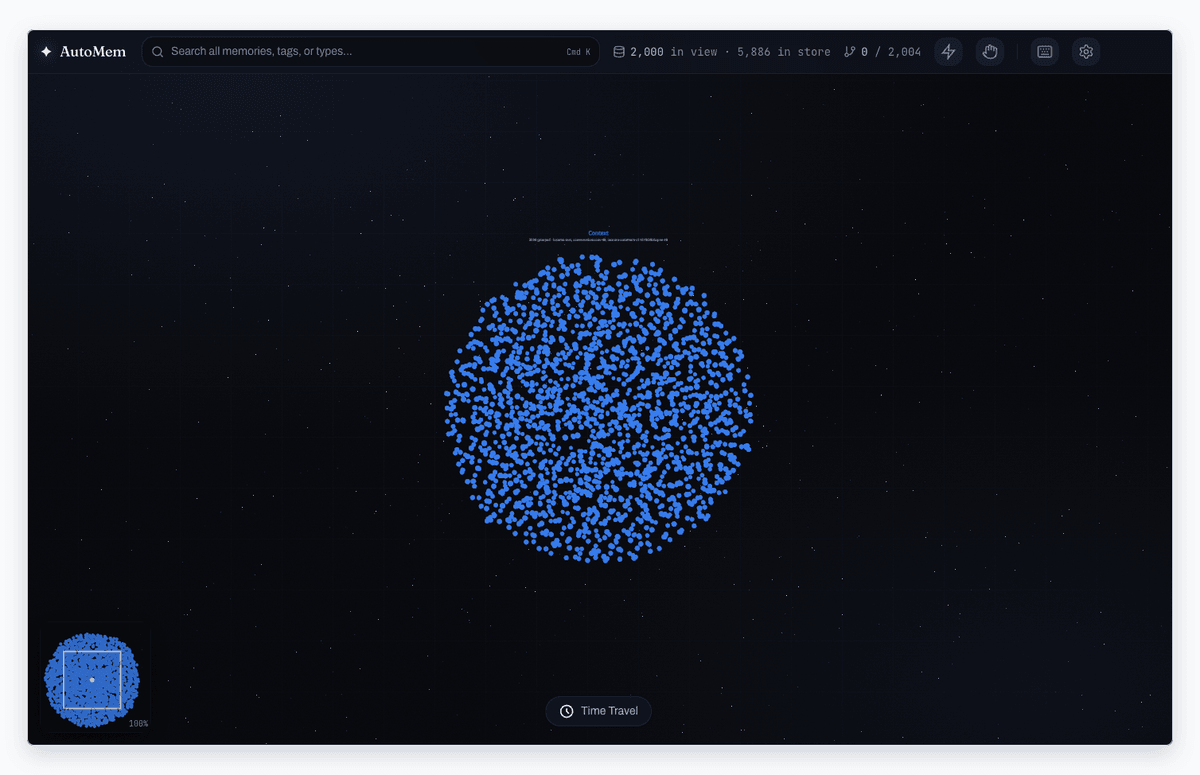
The AutoMem Graph Viewer is a standalone web application that renders your memory graph as an interactive 3D layout. It connects to the AutoMem API to fetch a bounded graph overview and lets you visually explore memories, relationships, clusters, and temporal patterns.
The automem API keeps a /viewer compatibility route that forwards the browser to the standalone viewer, so users can reach it from a running AutoMem instance. It needs GRAPH_VIEWER_URL set to your deployed viewer (without it, /viewer answers 503) and is registered while ENABLE_GRAPH_VIEWER is enabled, which is the default. The route itself skips the API-token guard, but the viewer’s own API calls do not: when AUTOMEM_API_TOKEN is set, they need that token.
| Whole-store search | Memory inspector |
|---|---|
 |  |
Key Features
Section titled “Key Features”3D Graph Canvas
Section titled “3D Graph Canvas”The core visualization uses React Three Fiber with d3-force-3d to render memory nodes and relationship edges in a physics-based 3D layout. Nodes are colored and sized by memory type, importance, or custom attributes. Edges reflect relationship types (RELATES_TO, LEADS_TO, EVOLVED_INTO, etc.) with distinct visual styles from the canonical palette.
The StatsBar uses honest scope language throughout the app:
| Label | Meaning |
|---|---|
| In view | Memories loaded into the 3D scene (bounded overview + any expansions) |
| In store | Total memories on the server |
The overview loads the most important memories first, up to 2,000 nodes by default. That default is a client-side limit (MAX_SNAPSHOT in the viewer), set by what the browser’s main-thread physics simulation can handle. Overview size under Settings → Filters offers 500, 1,000, or 2,000 nodes. There is no control for going higher; to test a larger overview on capable hardware, open the viewer with ?cap=10000 in the URL or set localStorage.automem_snapshot_cap = '10000'. The URL parameter wins over localStorage, a value that is non-numeric or below 1 falls back to 2,000, and an override that is not one of the presets shows up as an extra Overview size button. Past roughly 2,000 nodes the simulation can stutter. Completeness comes from exploration, not loading the entire corpus at once.
The Forces section of the Settings panel has five sliders, plus Reheat and Reset buttons:
| Setting | ForceConfig field | Effect | Range | Default |
|---|---|---|---|---|
| Center Force | centerStrength | Keeps the graph centered on the origin | 0.01 to 0.2 | 0.05 |
| Repel Force | chargeStrength | Repulsion between nodes | -200 to -20 | -100 |
| Link Force | linkStrength | How strongly each edge holds its preferred length, scaled by each relationship’s own strength | 0.1 to 1 | 0.5 |
| Link Distance | linkDistance | Preferred edge length (weaker relationships sit farther apart) | 20 to 100 | 50 |
| Collision Radius | collisionRadius | Collision radius around each node, as a multiple of the node’s own radius | 1 to 4 | 2 |
Expandable Graph
Section titled “Expandable Graph”The useExpandableGraph hook maintains a live, growing graph on top of the immutable snapshot. Click Expand into graph in the Inspector to fetch a node’s neighborhood via /graph/neighbors and merge it into the scene. New nodes get a transient arrival glow and frontier ring on the selected node; the most recent expansion can be undone with a single-level undo.
Inspector Panel
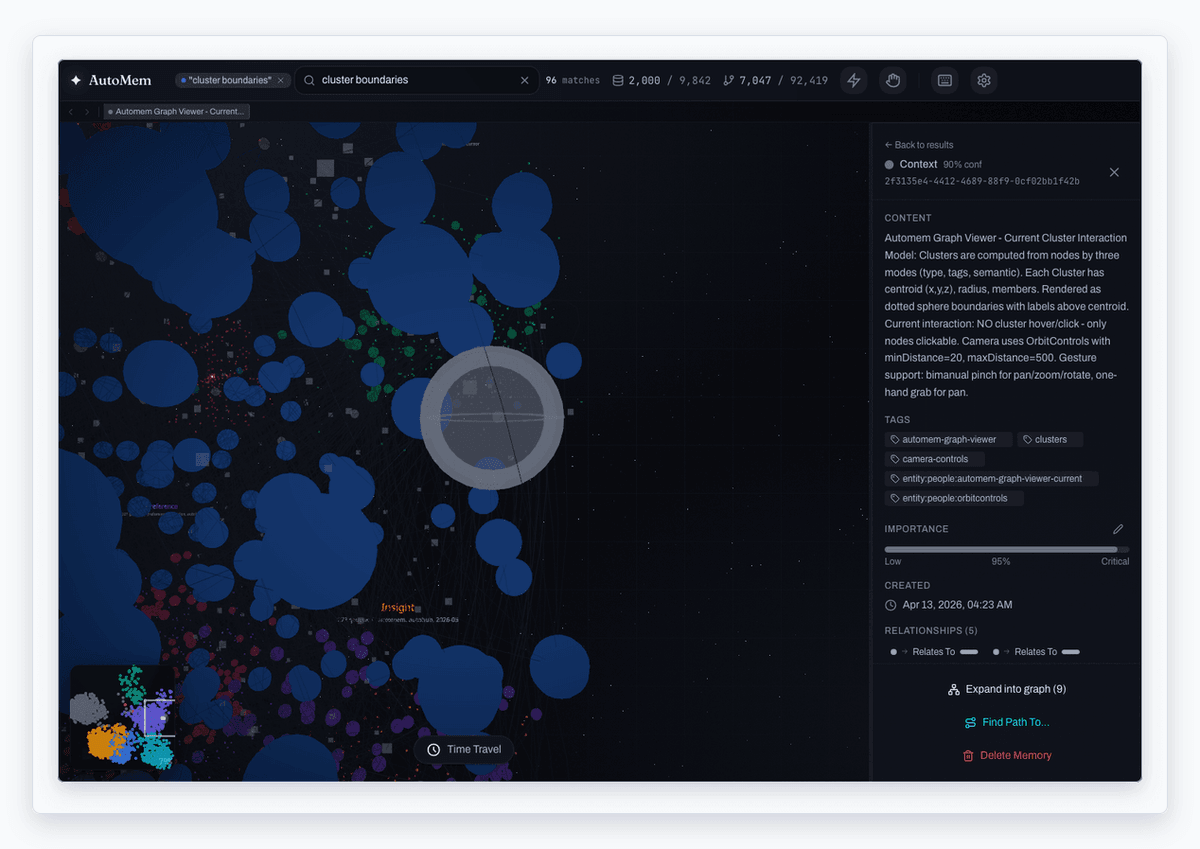
Section titled “Inspector Panel”Click any node to open the Inspector, which shows full memory details: content, type, confidence, tags, importance, timestamps, metadata, and connected relationships. You can edit importance, delete memories, expand neighborhoods, and start pathfinding from here. The panel is resizable via drag handles.
Search & Triage
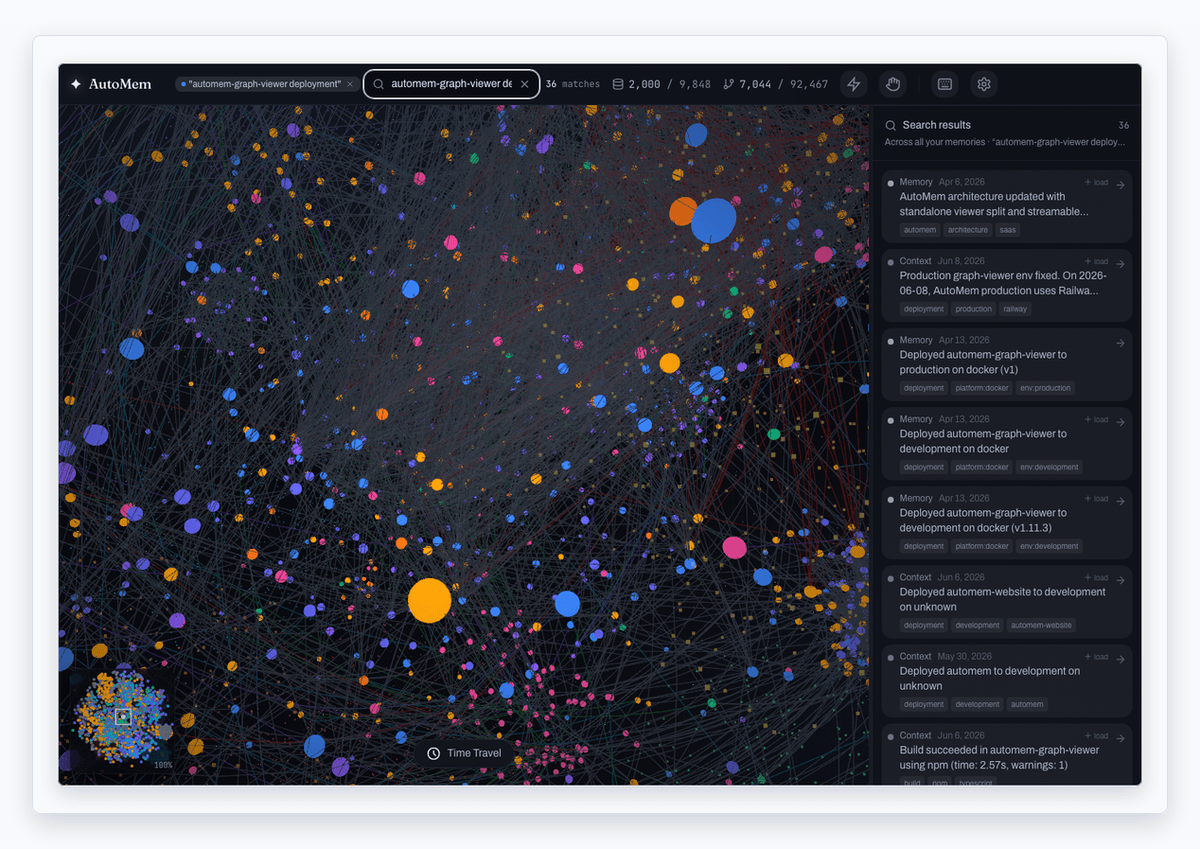
Section titled “Search & Triage”- SearchBar — Debounced search box with recent-search history. Tag-only queries filter the loaded graph client-side; text queries call whole-store semantic search via
/recall. - SearchResultsList — A triage surface over
/recallresults: sort by relevance, recency, or importance; filter by memory type; load off-graph matches into the scene with a + load affordance. Clicking a result flies to an in-graph node or injects an off-graph one.
Timeline & Time Travel
Section titled “Timeline & Time Travel”The TimelineBar lets you scrub through your memory graph’s history. The useTimeTravel hook maintains temporal state so you can see how the graph evolved over time.
Pathfinding
Section titled “Pathfinding”Select two nodes and the PathfindingOverlay computes and highlights the shortest path between them through the relationship graph, using the usePathfinding hook.
Cluster Detection
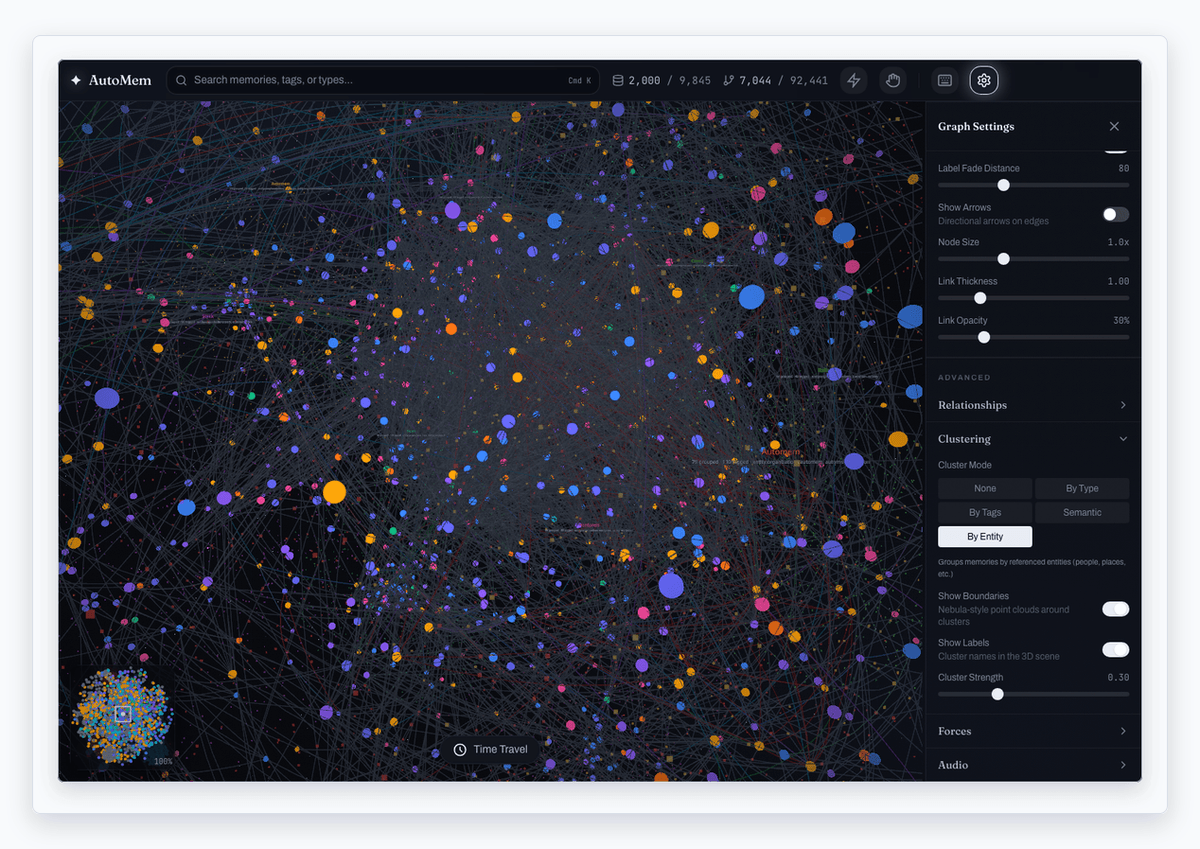
Section titled “Cluster Detection”Clustering modes group the graph spatially for legibility:
| Mode | Groups by |
|---|---|
| By Type | Memory type (Decision, Pattern, Insight, etc.) |
| Tags | Primary tag |
| Semantic | Strongly-connected relationship clusters |
| By Entity | Referenced entities (people, places, etc.) |
The useClusterDetection hook drives ClusterBoundaries and ClusterLabels around grouped subgraphs.
Navigation
Section titled “Navigation”- Breadcrumbs — Back/forward through your node selection history (
useBreadcrumbs) - MiniMap — Viewport overview with zoom indicator
- Keyboard navigation via
useKeyboardNavigation. Press?for the in-app shortcuts panel, which lists:
| Key | Action |
|---|---|
↑ ↓ ← → | Navigate between nodes |
Shift + ↑ ↓ | Navigate in the Z axis |
Tab | Next node |
Shift + Tab | Previous node |
Esc | Deselect, or cancel pathfinding |
P | Find a path from the selected node |
R | Reheat the simulation |
Shift + R | Reset the view |
, | Toggle settings |
L | Toggle labels |
? | Show the shortcuts panel |
Other keys work outside that panel’s list. / or Cmd/Ctrl + K focuses the search box (the SearchBar handles both, and neither fires while you are typing in a text field). T toggles the tag cloud. Cmd/Ctrl + [ and Cmd/Ctrl + ] step back and forward through the breadcrumbs. While time travel is active, Space plays or pauses the timeline and ← → step it (hold Shift to jump to the start or end).
Hand Tracking Controls
Section titled “Hand Tracking Controls”Hand gesture controls are available from the hand icon in the toolbar (no environment variable required). When enabled:
- Pinch to select nodes
- Grab to pan/rotate the view
- Two-hand gestures for zoom and rotation
- Optional iPhone LiDAR hand-tracking bridge for local dev (
npm run dev:all)
This feature is experimental and requires camera permission.
Architecture
Section titled “Architecture”src/├── App.tsx # Main app shell, state orchestration├── api/│ └── client.ts # AutoMem API client (auth, fetch)├── components/ # UI components│ ├── GraphCanvas.tsx # React Three Fiber 3D renderer│ ├── Inspector.tsx # Node detail panel + expand/delete│ ├── SearchBar.tsx # Search box (in-graph filter + /recall)│ ├── SearchResultsList.tsx # /recall triage surface│ ├── TimelineBar.tsx # Temporal scrubber│ ├── PathfindingOverlay.tsx # Shortest-path visualization│ ├── ClusterBoundaries.tsx # Cluster boundary rendering│ ├── ClusterLabels.tsx # Cluster name labels│ ├── StatsBar.tsx # In-view vs in-store statistics│ ├── MiniMap.tsx # Overview minimap│ ├── Breadcrumbs.tsx # Selection history navigation│ ├── TokenPrompt.tsx # API token entry UI│ └── settings/ # Force/display/cluster config├── hooks/ # React hooks (data, navigation, gestures)│ ├── useGraphData.ts # TanStack Query graph/recall fetches│ ├── useExpandableGraph.ts # Merge-on-expand graph model│ ├── useAuth.ts # Token management│ ├── useForceLayout.ts # Physics simulation config│ ├── useTimeTravel.ts # Temporal navigation│ ├── usePathfinding.ts # Shortest-path algorithm│ ├── useClusterDetection.ts # Spatial clustering│ ├── usePersistentState.ts # Settings persisted to localStorage│ └── ...└── lib/ ├── types.ts # TypeScript type definitions ├── edgeStyles.ts # Relationship visual styles ├── palette.ts # Canonical type/edge colors └── sounds.ts # UI sound effectsThe app is a single-page React application built with Vite and TanStack Query. Settings (forces, display, clustering, relationships) persist via usePersistentState. The API client handles authentication and communicates with the AutoMem REST API.